
How to Watch & Record A9 / BK Mini WiFi Cameras on Windows PC Without iWFCam or Cloud
Pair a compatible BK mini WiFi camera on 2.4 GHz, watch it in CamSave for Windows and verify that your recording still works with camera internet access blocked.
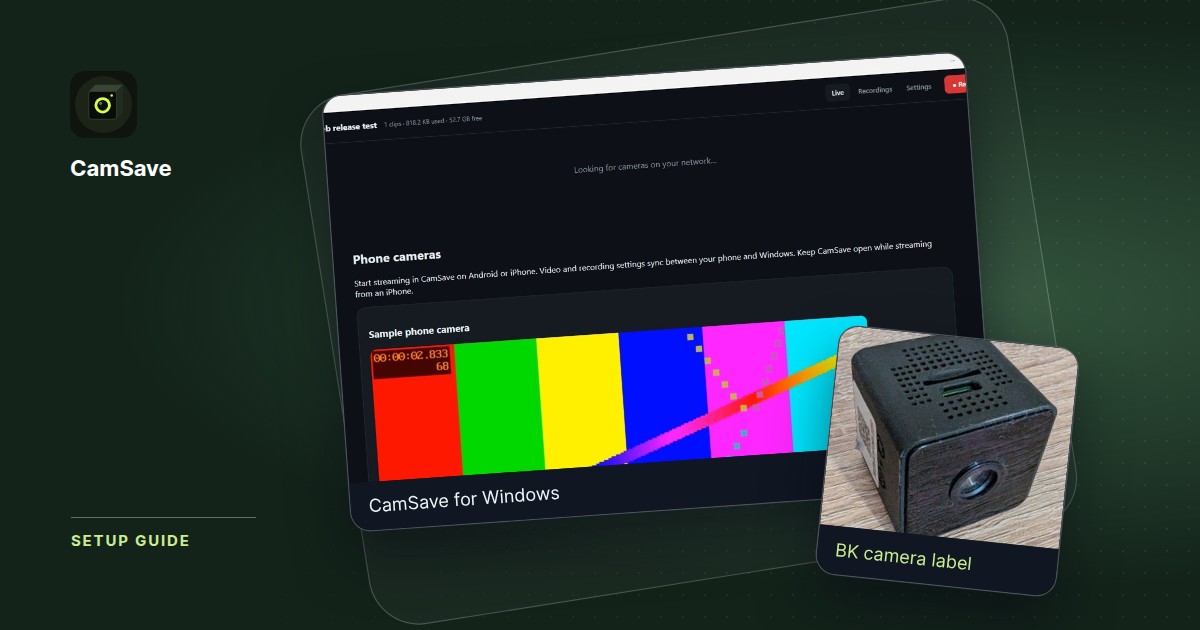
Check the hotspot before installing anything
The “A9” label appears on several unrelated cameras. The useful clue is the BK… Wi-Fi hotspot on a small cube normally sold for iWFCam. The supported BK cameras use their own local protocol, so an RTSP or ONVIF viewer is unlikely to find them. Keep the camera plugged into USB power while setting it up and recording.
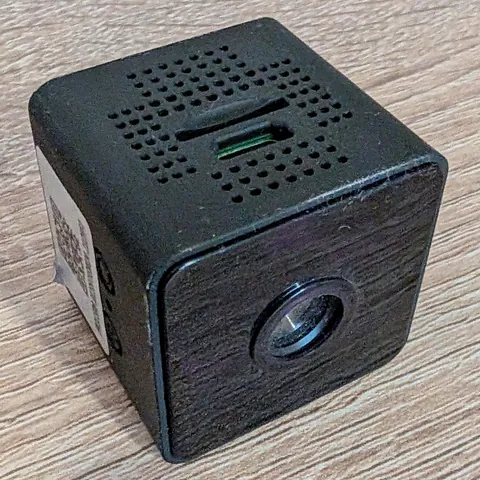
Put the camera and PC on the same local network
- If this is your camera and it already has old Wi-Fi settings, hold MODE for about six seconds until it restarts. This clears its saved Wi-Fi and restores the supported BK camera’s default camera password,
8888. - Open CamSave on Android or iPhone, add a camera and scan the sticker QR code. If the sticker is missing, join its BK hotspot from the phone’s Wi-Fi settings and return to CamSave. Accept the prompt to stay connected if the phone says the hotspot has no internet.
- From the camera’s Wi-Fi setup, choose your 2.4 GHz network and enter its password. Wait for the camera to restart and move the phone back to the home network. If the camera already works on your LAN, you can skip pairing.
- Install CamSave for Windows and open it on the same LAN. Allow Windows Firewall access on Private networks when prompted on your trusted home network. The PC can use Ethernet if it reaches the camera’s network.
Record a clip and check that it plays
Start a manual recording, leave it running for 20 seconds, then stop and open the file in the hub’s recordings view. BK clips are Motion-JPEG AVI files. The default Windows recordings folder is Videos\CamSave and you can change it in Settings. CamSave keeps running in the tray when you close the window. Keep the PC awake for continuous recording.
If the camera does not appear, check whether guest Wi-Fi or a separate VLAN isolates it from the PC. Verify that the camera actually joined 2.4 GHz before resetting it again. To verify the local path, block the camera’s internet access at the router while keeping LAN access, then repeat the short recording and playback check.
See the CamSave pairing guide for screenshots and troubleshooting. For a comparison with the vendor app, see CamSave vs iWFCam.
Get CamSave
Frequently asked questions
Can I set up a new camera without iWFCam?
Yes. CamSave’s phone app can pair supported BK cameras from the sticker QR code or BK hotspot, then move them to your local 2.4 GHz network.
Can I record several cameras to one PC?
CamSave Pro adds simultaneous multi-camera viewing and recording, plus motion-triggered and continuous recording. Free covers live view and manual recording for one camera.
Does every A9 camera work?
No. The same A9 name is used for several designs. Look for a BK hotspot and an iWFCam-compatible cube before assuming compatibility.