
How to Transfer Files to an Air-Gapped Computer Without USB, Wi-Fi, or Cloud
Use an approved optical QR transfer to move a small file. Learn how RaptorQ recovers missed frames, how to check the BLAKE3 fingerprint and how paper and offline activation work.
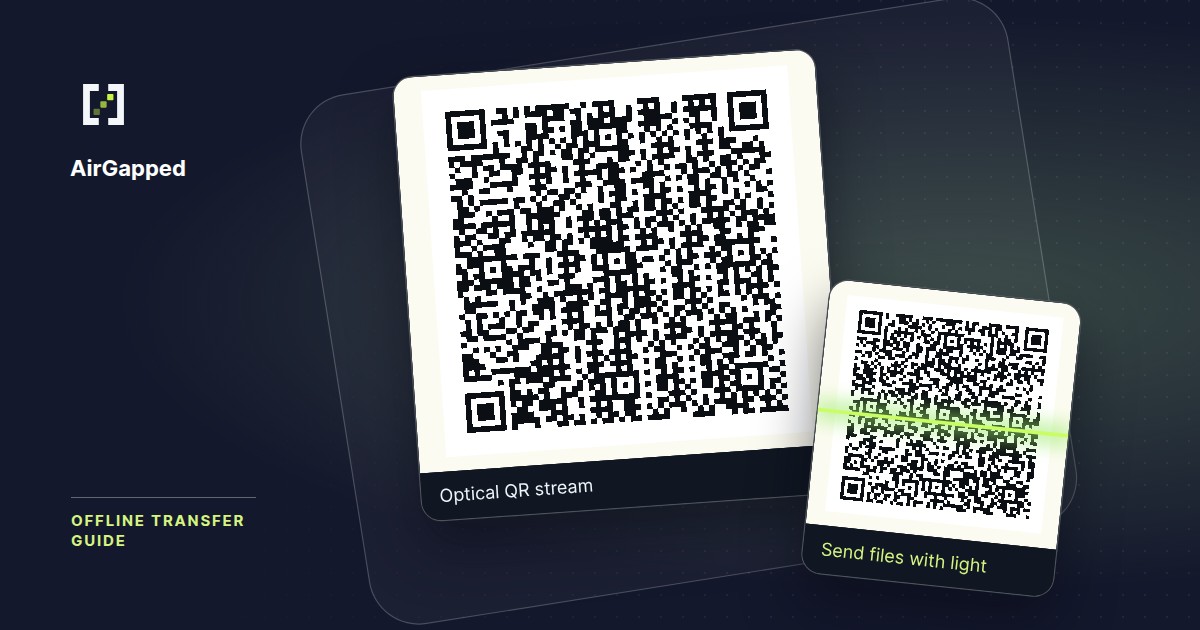
Prepare the approved sender and receiver
The sender needs a screen. The receiver needs a supported camera and an installed copy of AirGapped with camera permission. On an isolated computer, arrange installation through your approved software provisioning process. If your environment prohibits cameras or optical transfer, use its approved import process.
Light is designed for documents, configuration files and other small payloads. Start with a harmless test file. If there are multiple files, package only what is needed. For a very large payload, check your organization’s approved bulk-transfer method.
Send with Light, then verify
- On the sender, select the file in AirGapped and choose Show codes in Light mode. Start at Reliable with a bright screen and a steady angle.
- On the receiving computer, choose Receive. Frame the full QR code in the camera preview and adjust the distance until the progress count keeps increasing. Reduce glare or slow the stream if decoding stalls.
- When both sides display the transfer fingerprint, compare the BLAKE3 fingerprints directly. A match verifies that the received bytes are the same transfer payload. Confirm the sender and run any required scanning or approval before opening the file. A hash alone cannot establish that a file is safe.
Light uses RaptorQ fountain coding. After showing the source symbols, the sender produces new repair symbols. The receiver can rebuild the payload from enough distinct symbols, even if it missed some frames or started late. A participant only needs a screen on one side and a camera on the other for this mode.
Paper copies and offline Pro activation
Print on paper is a Pro send feature for very small payloads. Choose it when the data fits on one page, around 9 KB of packed data, with less room when password protection adds overhead. Test-scan the printout before relying on it. For sensitive material, use the optional password protection and keep the password separately. Reading a printed copy is free.
An isolated Pro device can show its device ID. Use that ID and the purchase key on a connected device to request a signed activation code from the AirGapped activation page. Enter the activation code on the offline device over an approved path. The app verifies it offline. Light transfers and fingerprint verification are available in the free tier.
See AirGapped help and the current Pro plans.
Get AirGapped
Frequently asked questions
Do I need a Wi-Fi or Bluetooth connection?
Light mode uses the displayed QR codes and the receiver’s camera. Wi-Fi and USB tethering are used by the separate Fast mode.
Do missed QR frames corrupt the transfer?
RaptorQ lets the scanner recover the payload from enough distinct source and repair symbols. Wait for completion and verify the matching fingerprints.
Is a QR stream encrypted by default?
Light can be viewed by another camera in sight of the screen. Use a private space and the Pro password option if your environment permits and requires it.