
How to Take a Full-Page Screenshot of Scrolling Chats & Dashboards (Slack, Gmail, Notion)
Capture the scrollable panel in Slack, Gmail, Notion or a dashboard, reduce repeated headers, and check for missing rows before sharing.
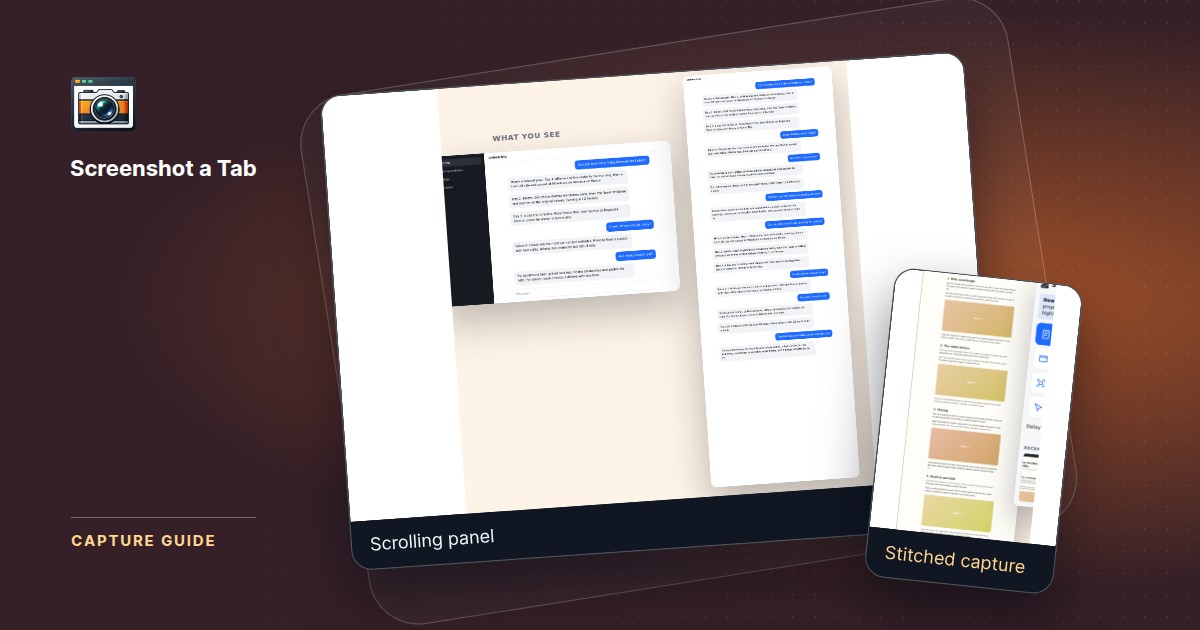
Find which part of the page scrolls
Scroll with your pointer over the list. If the app’s toolbar and sidebar stay still while the rows move, the list is an inner scroll container. A browser screenshot of the whole document can still stop at the visible edge of that container.
- Set the date range or open the conversation you want. Expand any panels you need and wait for the app to finish rendering.
- Open Screenshot a Tab in the toolbar. Use Element, then hover over the pane that scrolls. Press ↑ to select the parent if the highlight covers just one row. Click once the highlight outlines the pane.
- For the surrounding layout, try Full page instead. In the extension settings, enable the option to hide sticky headers and chat buttons after the first screen if they’re repeating across the output.
- Use the preview to spot missing sections or repeated rows. Crop the edges and save as PNG for readable text or PDF for long captures. If the page changes during capture, pause live updates when the app lets you, or capture smaller sections.
What to check in each app
- Slack. Use Slack in the browser. Open the channel message pane or the thread pane you need. Load older replies before capture. Long history may need several shorter captures because Slack can replace older rows as you scroll.
- Gmail. Open the individual conversation and expand the messages you want to include. Select the message pane if the folder list remains fixed. Check clipped messages separately before you share the image.
- Notion or a dashboard. Filter to the relevant rows. Expand collapsed groups and scroll through lazy-loaded entries first. If a table also scrolls sideways, capture each column range you need and check the resulting edges.
A screenshot is a snapshot of visible UI. For a complete record of a virtualized list, use the app’s CSV or workspace export if you have permission. Before sharing, crop out unrelated content or redact private information, then reopen the exported file to verify it.
See how Screenshot a Tab compares with GoFullPage and FireShot.
Get Screenshot a Tab
Frequently asked questions
Why does the screenshot stop after the first screen of chat messages?
The chat may scroll inside its own panel while the outer web page does not move. Select the panel with Element capture, load the needed messages and check for rows the app removes as you scroll.
Is cropping free?
Yes. Cropping and standard PNG, JPG and PDF exports are free. Annotation and blur in Screenshot a Tab are Pro features.
Can I share one long capture as a PDF?
Yes. Screenshot a Tab can export a PDF with A4, Letter or one long page. Check legibility and pagination in the exported file before sharing.